After I released my first WordPress theme to public, I make another theme for my site, CypherFS Royale . Then an idea sparkling into my head. Why not I make a tutorial on how to make WordPress theme to public? I’m sure there are many peoples are looking to make their own theme for their website. So lets get started.
But before we proceed, I want to tell you first that this tutorial only covers on how to set the layout and the tags or functions needed to make your WordPress theme works perfectly. It is really basic. I will not teach you html, css and php here. You need to learn them by yourself. There are many tutorials available on the net. I’m sure you can found them in ease.
Ok, I split this tutorial to 7 parts. Here are some details for each part.
- Part 1 – The Layout
- Part 2 – Header
- Part 3 – Index
- Part 4 – Comment
- Part 5 – Sidebar
- Part 6 – Footer
- Part 7 – Finish!
Let’s begin the Part 1 – The Layout.
The best thing in using WordPress is we can divide our theme into section. Eg: header.php, index.php, etc. But before that, we need to create our theme layout first. To do it, we start with blank html file. Btw theme that we will make here is two columns theme.
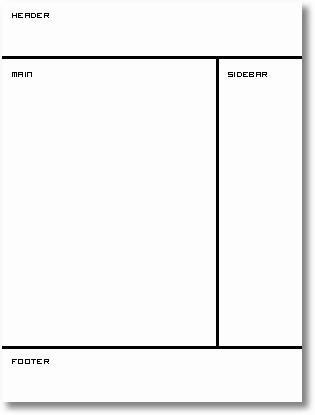
Now open your favourite text editor such as Notepad. For me, I use EditPlus. It is easy to use and each tag has each colour code. After you open your text editor, we start building the layout.
Type this into your text editor and save it as index.html.
<html>
<head>
 <title>My WordPress Theme</title>
</head>
<body>

</body>
</html>
That is really basic. Now we are going to create sections in our index.html file. We will use <div> tag here. So prepare your CSS to beautify your theme. Ok now we put in the <div> tags.
<html>
<head>
 <title>My WordPress Theme</title>
</head>
<body>
 <div id="wrapper">

  <div id="header">
   header
  </div> <!-- close header -->

  <div id="content">
   <div id="main">
    main
   </div> <!-- close main -->
   <div id="sidebar">
    sidebar
   </div> <!-- close sidebar -->
  </div> <!-- close content -->

  <div id="footer">
   footer
  </div> <!-- close footer -->

 </div> <!-- close wrapper -->
</body>
</html>
As you can see from the code above, I end the close div tag with a comment to make me easier to trace the close div tag belong to which div’s id.
Ok now we have the sections that we want. The next thing that we will do is to divide each section to their own PHP file. This will save our time if we want to edit our theme in the future. PHP files that we will create are:
- header.php – contains the header
- index.php – our main file
- sidebar.php – sidebar section will be here
- footer.php – our footer file
Now divide the sections to their own file. Copy and paste them into each file. Make sure to save them in .php extension. Each file will looks like this.
header.php
<html>
<head>
 <title>My WordPress Theme</title>
</head>
<body>
 <div id="wrapper">

  <div id="header">
   header
  </div> <!-- close header -->

  <div id="content">
index.php
   <div id="main">
    main
   </div> <!-- close main -->
sidebar.php
   <div id="sidebar">
    sidebar
   </div> <!-- close sidebar -->
footer.php
  </div> <!-- close content -->

  <div id="footer">
   footer
  </div> <!-- close footer -->

 </div> <!-- close wrapper -->
</body>
</html>
Next, Part 2 – Header.
In the real exams of 350-001, people do learn to make wordpress themes. However it is not until you have done your VCP-310 as well as 640-802, that your work reeks of finesse. There can be work produced by 70-290 as well as 70-291 but that is basically crude.

nice tutorial dude…very useful :d
better kalau buat untuk xhtml… nice try…
hahahaha ko dah balik dari bercuti ke?
rajin ko wat tutorial mende ni 😕
ok la tu.. nice work
bleh blaja buat from the scratch :d gud2!
[Comment ID #15599 Will Be Quoted Here]
leh je tukar jadi xhtml kalau nak. hu3. tu semua bergantung kepada designer tu la sama ada nak atau tak. aku just tunjuk yang basic je. :d
[Comment ID #15603 Will Be Quoted Here]
dah balik cuti dah. jap lagi baru aku nak update personal blog aku tu. hu3.
bro cypher..maybe next time leh post kan meta tag tuk ape id: header tuk ape..id: wrapper tuk ape..id: sidebar tuk ape..etc..kalau tgk structure je n trus buat..tp tak tau fungsi tak gunegaks kan..anyway great post..besh giler bace..
kalo nak letak sidetbar ngan rightbar sama jugak ke cara dia?
[Comment ID #15672 Will Be Quoted Here]
yang tu html sebenarnye. dats why kene tahu basic html dulu. he3. kalau nak gune nama lain pun boleh. takde masalahnyer. 🙂
[Comment ID #15673 Will Be Quoted Here]
kalau macam ni, selalu orang buat die call file. nak call file tu kene gune php.
I found your tutorial extremely useful as a basic guide to starting the wordpress theme
[Comment ID #20131 Will Be Quoted Here]
thank you for your comment. 🙂
I think the tuturial is very useful. I follow it step by step. But I don’t belive the ‘copy and paste code’ in my computer will run at the end.
I need a zip-file of all the related files from the demo theme. Does someone has al link with the ready final demo code?
cu
i guess you can find it in the wordpress default theme. 🙂 i just use some codes (not all) from there.
nice tutorial
Thank you:)>-
thank you. :d
Justin Jung would like to invite you to share his Search Engine Marketing Expertise – SEM Expertise such as Pay per Click Advertising and Search Engine Optimization. Please visit the following website.
http://www.semexpertise.com
your tutorial aside, you need to brush up on your english.
Hi,
Wow, congratulations for being among the first few top search results to ‘wordpress theme tutorial’ keywords.
I’ve bookmarked your site. I’ve been wanting to create my own template for a while. Your guide will certainly come in handy.
Thank you very much!
Chrissy
http://www.hotelsandtravel.org
[Comment ID #39355 Will Be Quoted Here]
ha3. yeah! sure… lol…
Thanks for this great guide! Very useful
Nice tutorial.
I have also written a similar article called Developing a WordPress Theme.
Hey there, I have some free CSS templates at http://www.cmgtechnologies.com/free-css-templates.php, is there a way you can port those to wordpress for me, for a fee or something ? Or some sort of partnership ?
check your email. i just sent a reply to you. 🙂
Nice tutorial! Thx’s for sharing it with us. Very useful tutorial for me as a newbie in this field. It’s been a long time for me to find how to themes my own design. Thank you !!! 🙂
I’m still blur with all this codes and stuff.. Got the heart to do it but just confused. =S
this page ranked 18th on google for ‘how to create wordpress template’ not bad.. Cool:d
untuk! 😮
for some reason i keep getting errors on the index.php page. i even copied exactly what you had on your index.php file, and it’s still giving me errors. what am i doing wrong?
my website
Memang best tutorial hang ni.. teruskan usaha murni tue..:d
wow..nice tutorial..malay one..patut tulih ebook lagi bagus..:)