This TOOL will show you what products that will be shown if you put certain keywords. For an example, if you put “ATI Radeon”, Chitika eMiniMalls will show up “ATI RADEON X1900 XTX” product.
Continue reading…
Chitika eMiniMalls Plugin for WordPress
 If you use Chitika ads on your wordpress, you can use this plugin to place the ads in your posts. I just installed and use Chitika eMiniMalls plugin today. You can download it from HERE. It works fine. Easy to install and manage. Just put the plugin folder into wp-content/plugins and activate it in your plugin management. After activated, you can edit the settings in eMiniMall options. Go to Options and click on eMiniMall tab.
There you’ll see 10 options that you can change for your Chitika plugin.
Chitika Account Id
This account id is required for Chitika plugin. If you don’t have it, you can sign-up at Chitika website.
Width
Use to set the width size of the ads.
Height
Use to set the height size of the ads.
Category
By defaults, the plugin set it to 20001 which means it is the category code for “Chitika Seasonal Specials”. If you want to change another category, you can get the numeric code from THIS LIST.
Continue reading…
Get Money From Your Site
After long time using Google Adsense now I’m trying new ads for my site. Yay! My site have been approved by some new revenue sites that I registered a few days ago. I have submited my application to AdBrite, Text Link Ads and Chitika. And they approved my applications. Right now I have put their banners on my site. If you noticed everything is on the sidebar. But some ads I put at the end of my post. I know, although my site been approved but it doesn’t mean that I will get much money from it. But at least I’ll get some that can cover cost for my hosting.
Continue reading…
Your Windows XP Uptime
Want to know how long has your Windows XP system been running is?
Click Start > Run and type “cmd” (without the quotes) to open the command prompt. At the prompt, you type:
systeminfo
There you’ll see your system information. Scroll down the list to the line where it says System Up Time. This line will tell you in days, hours, minutes and seconds how long your computer been running.
Note: This command works in Windows XP Professional. If in Home Edition you type:
net statistics workstation
Hope this helps!
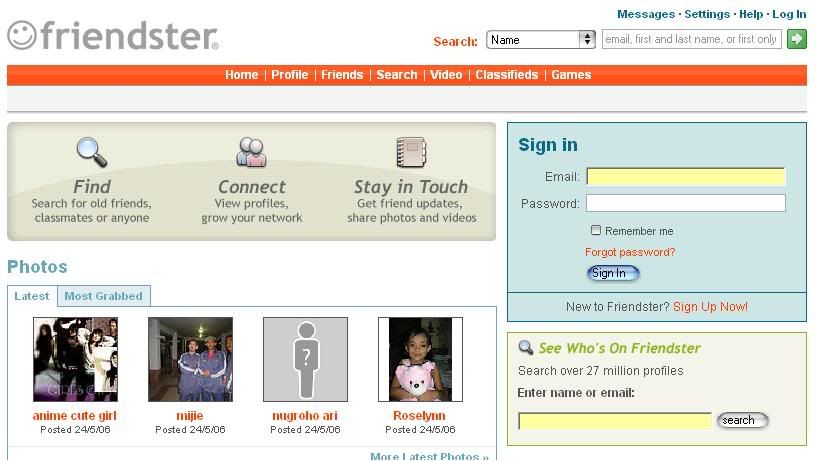
New Friendster Pages
 Have you logon into your Friendster account yet? Take a look their new pages. They have changed their main page and also user home page. It looks more organised and neat.